AI Assistant
The AI Assistant is an interactive chat built into the Bucketeer dashboard. You can ask natural-language questions about feature flags, A/B testing, progressive rollouts, and other Bucketeer capabilities, and receive answers streamed in real time. Responses are grounded in Bucketeer's official documentation, so you can get help without leaving the dashboard or searching the docs site manually.
Use case
The AI Assistant is helpful when you need to:
- Find out how to do something in Bucketeer without leaving the page you are working on
- Get contextual help about the feature flag you are currently viewing
- Understand a concept such as targeting rules, variations, or experiments
- Ask a question in your own language and receive a localized answer
For example, while configuring targeting on a flag, you can ask "How do I roll this flag out to 10% of users?" and the assistant will answer using the relevant documentation, taking into account the flag you currently have open.
Accessing the AI Assistant
When the AI Assistant is enabled, a chat widget appears in the bottom-right corner of the Bucketeer dashboard. Click the widget to open the chat popover, type your question, and press Enter to send it.
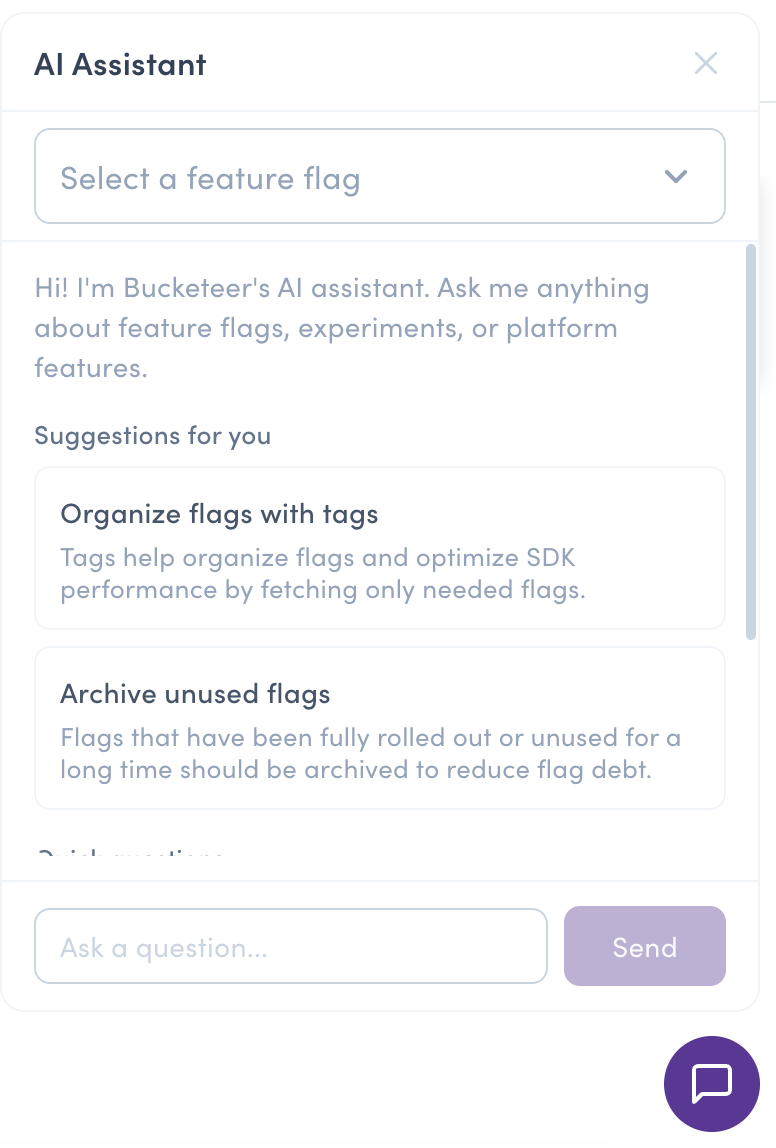
If you do not see the chat widget, the AI Assistant has not been enabled for your instance. See Enabling the AI Assistant below, or contact your administrator.
Using the AI Assistant
Asking a question
Type your question in plain language and send it. The assistant streams its response back token by token, so you start seeing the answer as it is generated rather than waiting for the full reply.
Suggested questions
When you open the chat, the assistant offers a set of suggested questions to help you get started. Selecting a suggestion sends it as your message.
Page-aware context
The assistant is aware of where you are in the dashboard. When you are viewing a feature flag, it uses that flag's context to give more relevant answers, for example referring to your flag's variations or targeting structure when responding.
Multi-language support
You can ask questions in your own language. The assistant searches the English documentation behind the scenes and responds in the language of your question, so a question asked in Japanese is answered in Japanese.
What the AI Assistant can and can't do
The AI Assistant is designed to help you use Bucketeer, with a few important limitations to keep in mind:
- Answers are grounded in official documentation. The assistant retrieves relevant pages from the Bucketeer documentation to answer your question. It may not have specific knowledge of your custom setup, internal processes, or configuration outside of what the documentation covers.
- It reads structural flag information only. When you are viewing a flag, the assistant can use that flag's structure to give contextual answers, such as the flag name, description, variation names, tags, rule structure, and whether the flag is enabled.
- It does not access sensitive data. Variation values, targeting clause values (such as user IDs or email addresses used in rules), and attribute names are deliberately excluded and are never sent to the assistant.
Privacy and data handling
The AI Assistant sends your questions and a limited amount of context to an external Large Language Model (LLM) provider to generate answers. To protect your data:
- Only structural feature flag metadata is shared (flag name, description, variation names, tags, rule structure, and enabled state). Variation values, targeting values, and attribute names are never included.
- Your input is sanitized before it is processed.
- Requests are rate limited per user. If you send many messages in a short period, you may be temporarily throttled and asked to wait before sending more.
If your organization has specific data-handling requirements, your administrator can configure which LLM provider the assistant connects to. See Enabling the AI Assistant.
Permissions
To use the AI Assistant, you need at least the Viewer role for the environment. Users without access to an environment cannot use the assistant for that environment.
Enabling the AI Assistant
The AI Assistant is disabled by default. If you are self-hosting Bucketeer, an administrator enables it through environment configuration on the web service. When no LLM API key is configured, the feature is fully disabled: no routes are registered and the chat UI is hidden.
| Variable | Default | Purpose |
|---|---|---|
BUCKETEER_WEB_OPENAI_API_KEY | (empty) | API key for the LLM provider. When empty, the AI Assistant is fully disabled. |
BUCKETEER_WEB_OPENAI_BASE_URL | (provider default) | Base URL for the LLM API. Override to use an OpenAI-compatible provider such as Azure OpenAI, vLLM, or Ollama. |
BUCKETEER_WEB_AICHAT_MODEL | (empty) | The model used to generate answers. Required when the API key is set (for example, gpt-4o-mini). |
BUCKETEER_WEB_AICHAT_GITHUB_TOKEN | (empty) | Optional. Increases the GitHub API rate limit used when searching the documentation. |
In addition to the web service variables above, the frontend exposes a window.env
toggle that shows or hides the chat UI:
| Variable | Default | Purpose |
|---|---|---|
AI_CHAT_ENABLED | false | Frontend toggle that shows or hides the chat UI. |
The assistant connects to any OpenAI-compatible API. Self-hosted users who cannot send
data to a third-party provider can point BUCKETEER_WEB_OPENAI_BASE_URL at a self-managed
model server.
Troubleshooting
I don't see the chat widget. The AI Assistant is not enabled for your instance. Confirm that an LLM API key is configured and that the feature is turned on. See Enabling the AI Assistant.
My messages are being throttled. Requests are rate limited per user. Wait a short period before sending more messages.
Answers don't cover my specific setup. The assistant answers from the official documentation. For questions about custom configuration not covered by the docs, contact your administrator or refer to your internal documentation.