API Keys
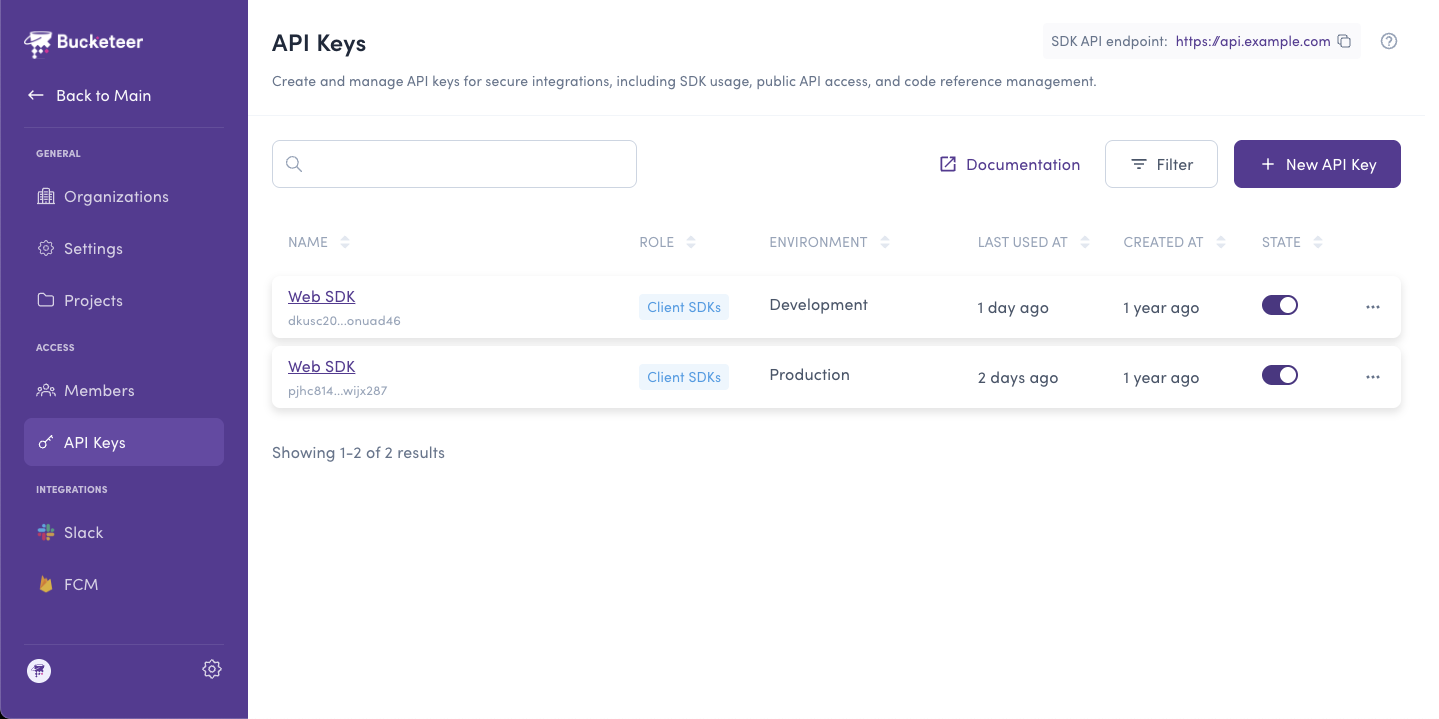
API keys authorize and control access to the Bucketeer feature flag management system, providing authentication capabilities that ensure secure connections between your application and the server.
Each API key is associated with a specific environment, allowing you to identify and link your application to the desired user group.
Accessing API Keys
- Click the gear icon at the bottom of the left sidebar
- Select API Keys from the Access section
Key Roles
In Bucketeer, when you create an API key, you have to select a key role. The Key Role defines the permissions and access levels associated with the API key. The available roles are:
| API Key Role | Description |
|---|---|
| Client SDKs | Allows all SDKs to evaluate end users using the Bucketeer server. |
| Server SDKs | Allows the server SDK to evaluate end users locally. For server-side evaluation using the Bucketeer server, use a Client SDK key. |
| Public API (Read Only) | Allows read-only access to data in Bucketeer. |
| Public API (Read and Write) | Allows reading and writing data in Bucketeer. |
| Public API (Admin) | Allows full read and write access to all data in Bucketeer, including environment settings. |
When using server SDKs, you have two evaluation options:
- Local evaluation (Server SDK key): The SDK evaluates users locally within your application. This provides the fastest response times and reduces server load.
- Remote evaluation (Client SDK key): The SDK sends evaluation requests to the Bucketeer backend. Use this if you need centralized evaluation or don't want to maintain local state.
Choose the API key role that matches your evaluation strategy.
Creating an API Key
To create an API key, you need to be an Organization Admin or Organization Owner. Other members can see the API keys but can't manage them.
To generate a new API key:
- Navigate to the API Keys page in Organization Settings
- Click the + New API Key button
- Provide a descriptive Name for the key
- Select the Environment in which the key will be used
- Choose the appropriate Key Role based on your requirements
- Click Create API Key to generate the API key
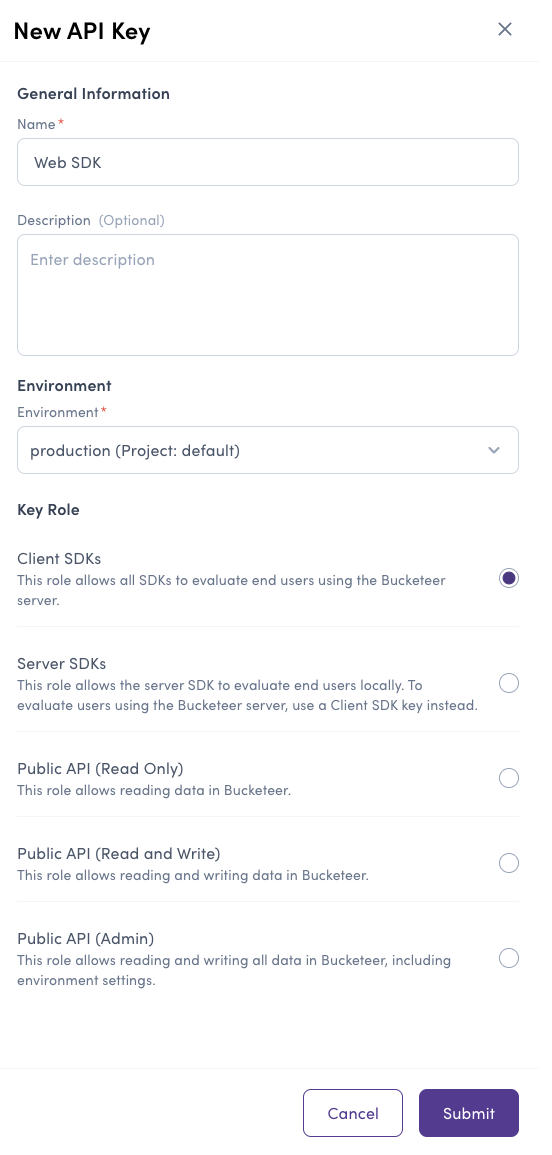
Choose a meaningful name for the API key based on its associated feature or project to make it easy to manage. Avoid random names, as they can cause confusion and make it difficult to identify where the API key is used.
Managing API Keys
API Key Status
Once an API key is created, it becomes immediately available for use and is set to the ON state. It grants access to all feature flags within the assigned environment.
Disabling API Keys
The Bucketeer dashboard does not offer a direct option to delete API keys. However, if a key is no longer required, you can disable it:
- Locate the API key in the list
- Toggle its state to OFF using the available switch button
- Confirm the change
When an API key is disabled, all SDK requests using that key will be denied. Your applications using this key will no longer be able to access feature flags.
Related Topics
- Members - Manage team member access
- HTTP API - Use API keys for programmatic access
- SDK Documentation - Integrate API keys in your SDKs