Members
The Members page allows you to invite team members to your organization, assign roles, and manage their permissions across environments.
Accessing Members
- Click the gear icon at the bottom of the left sidebar
- Select Members from the Access section
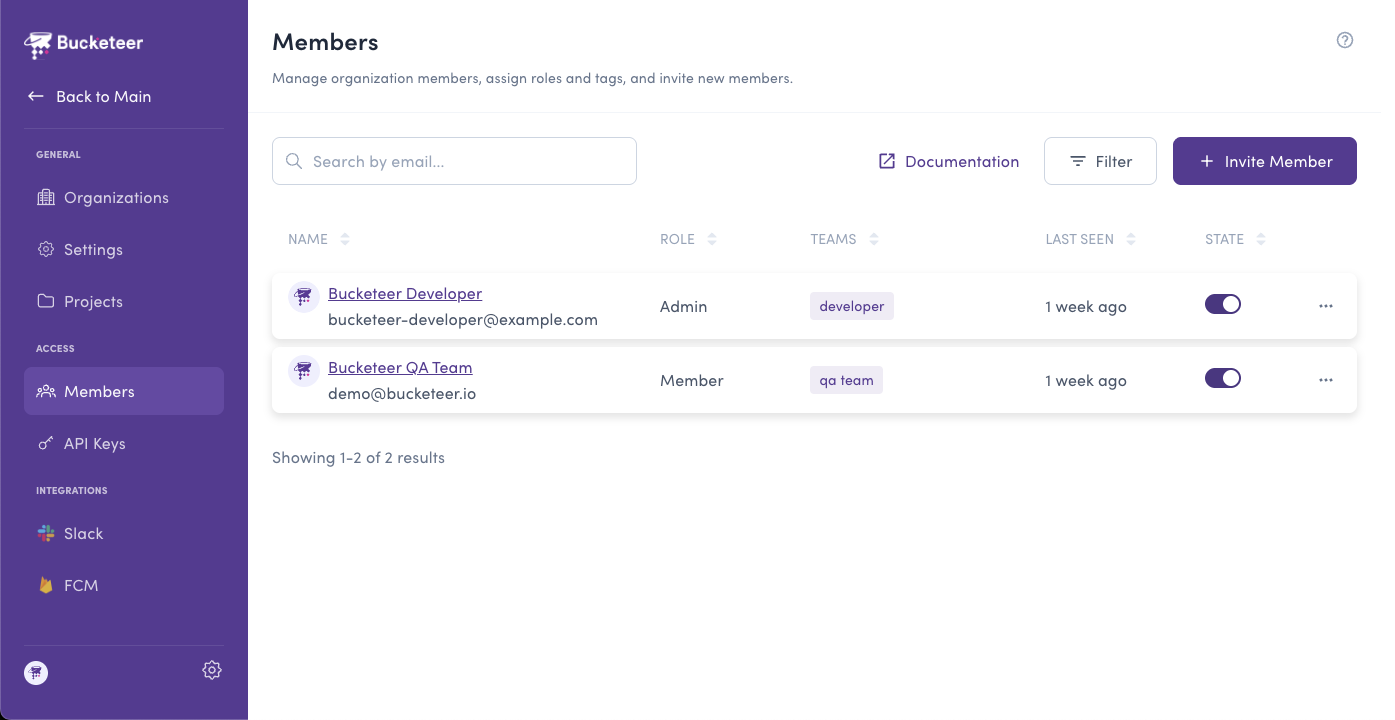
The Members page displays all organization members with:
- Name - Member's display name
- Email - Member's email address
- Organization Role - Owner, Admin, or Member
- Teams - Assigned teams
- Status - Enabled or Disabled
- Created - When the member was added
Understanding Roles
Bucketeer uses a two-tier role system: Organization Roles and Environment Roles. Projects do not have their own permission roles.
Organization Roles
Organization roles define what a member can do at the organization level:
| Role | Permissions |
|---|---|
| Owner | Full access to all organization settings, projects, and environments. Can manage all members and settings. |
| Admin | Can manage organization settings, projects, environments, members, and API keys. Cannot change owner's email. |
| Member | Access limited to assigned environments only. Cannot manage organization settings. |
Environment Roles
When a member has the Member organization role, you must assign specific environment roles:
| Role | Permissions |
|---|---|
| Editor | Can create, update, and manage feature flags, experiments, goals, and segments within assigned environments. |
| Viewer | Read-only access to feature flags and data in assigned environments. Cannot modify any settings. |
System Admin accounts automatically have Viewer (read‐only) access to all projects and environments in the organization, regardless of explicit membership. They can edit (Editor role) only in the environments where they are assigned an Editor role or where they are the organization admin.
- Owner/Admin roles have automatic access to all environments
- Member roles require explicit environment assignments
- You can assign different roles per environment (e.g., Editor in Development, Viewer in Production)
Inviting New Members
To invite a new team member:
- Navigate to the Members page in Organization Settings
- Click the + Invite Member button
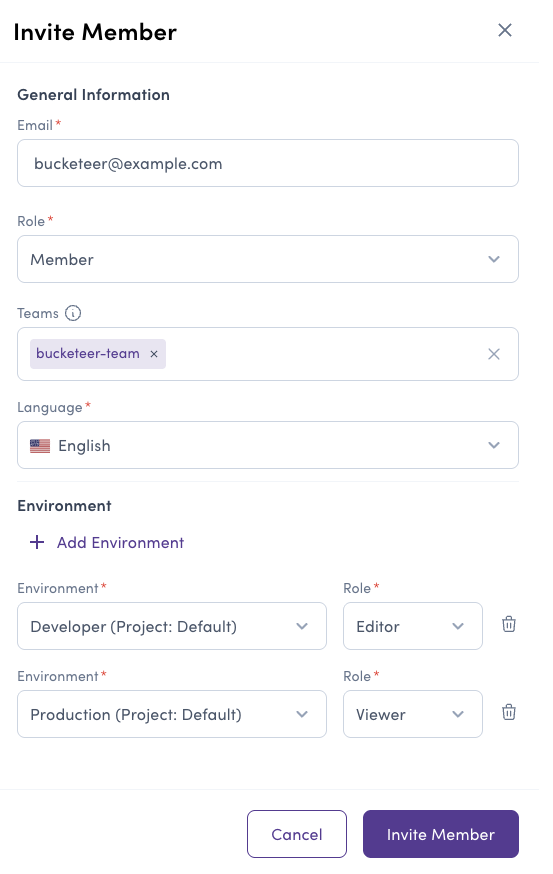
- Fill in the member information:
- Email - The email address of the person to invite
- Role - Choose Owner, Admin, or Member organization role
- Teams (Optional) - Assign to teams for easier management
- Language - Select the language for dashboard and email notifications
- Environment Roles - (If Member role) Select environments and assign roles
- Click Invite Member
Member Invitation Process
- You send an invitation from the Members page
- The invited person receives an email with an invitation link
- They click the link to accept the invitation and access the dashboard
- Their account is activated with the assigned roles
Managing Teams
Teams are optional groupings that help organize members. They make it easier to filter and manage members in large organizations.
When inviting or editing a member, you can assign them to a team. Teams are created automatically when you first use a team name. Use consistent team names across members.
Managing Members
Updating Member Roles
To update a member's role or environment access:
- Click on the member in the members list
- Modify their Organization Role or Environment Roles
- Click Update Member
Only Organization Admin and Organization Owner roles can manage members. Owners can manage all members including other Owners, while Admins cannot modify Owner accounts.
Disabling Members
To temporarily revoke a member's access:
- Click on the member to edit
- Toggle their status to Disabled
- Confirm the change
Disabled members cannot log in or access any part of the Bucketeer dashboard.
Deleting Members
To permanently remove a member:
- Click on the member to edit
- Click the Delete button
- Confirm the deletion
Deleting a member permanently removes them from the organization. This action cannot be undone.
Environment Access Control
When assigning the Member organization role, you must specify which environments they can access and what role they have in each environment.
Assigning Environment Access
- Select Member as the organization role
- In the Environment Roles section, choose environments from the list
- For each environment, assign either Editor or Viewer role
- You can assign different roles for different environments
Searching and Filtering
Use the search and filter options to manage large teams:
- Search - Find members by name or email
- Team Filter - Show members from specific teams
- Role Filter - Filter by organization role (Owner, Admin, Member)
- Status Filter - Show enabled or disabled members
Related Topics
- API Keys - Create and manage API keys for SDK authentication
- Invite a Member - Detailed guide for inviting members
- Projects - Manage projects and environments